Installing WordPress on your own Windows computer

Translation:

Also available as PDF.

Please consult the FAQ if you have questions.

You may be interested in installing WordPress on WEMP by Hendry Lee.

We generally become WordPress users to create a blog for everyone to see. This can involve the purchasing of a domain name and web hosting. These we treat as black boxes on which the WordPress software is installed, and everything magically works. This is exactly how it should be.

Although WordPress provides a comprehensive management interface, there are times when it would be better to have our own local copy, running on our own machine. There are several reasons we would want to do this:

  • A working backup of our online site
  • A development site to develop plugins and themes without affecting our online site
  • A testing area to try out hacks and new versions of WordPress without fear of corrupting the live site
  • A staging area to create and verify posts, before releasing them live

Just like in a commercial environment, it helps separate our blog into two parts: production and development, or live and test. Our production blog is the one that is visible to everyone. It might not contain the latest information or the most up-to-date software, but it is fully working and error free. Contrast this to a development blog where we have the very latest software and information, but possibly not fully working.

Separating our site gives us the freedom to experiment without fear of destroying the working version. At the very worse, if the development blog is corrupted we simply re-install the software, and the only loss is our own time. If we corrupt the production site then no one can access our information and we lose visitors.

In writing a set of articles dissecting a WordPress theme, I realised that a lot of people are directly editing their live site. There are many reasons for this, but a good one is probably due to the difficulty in setting up a local system. This is a short guide to try and explain how to do just that.

Installing the server software

WordPress requires several pieces of software:

  • A webserver
  • PHP configured to work through the webserver
  • A MySQL database

None of these are particularly simple pieces of software, and all require configuration to work together. Fortunately there is a lovely software suite called WAMP that packages these together and adds a nice front-end. This is definitely the fastest and easiest way to get it working.

Consequently, the first task here is to download the latest WAMP. Note that this only works on Windows 2000/XP, so I'm afraid you are out of luck if you have anything earlier.

Installing WAMP

Once the software is downloaded we can begin to install it:
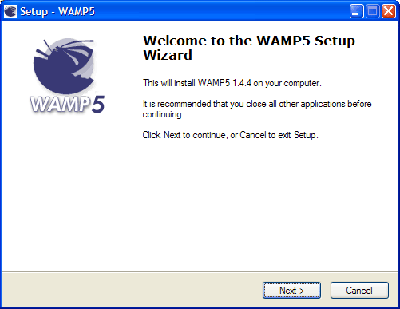
WAMP

The installation process is very straightforward. First we choose a destination directory. The default is ideal.
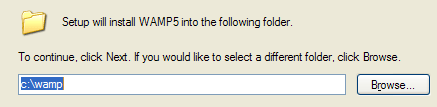
Choose directory

Next we choose whether to automatically start WAMP. You can tick this if you want, but Apache and MySQL make heavy use of system resources and we don't always need them running. It is much better to start the software on demand, and so leave this option unchecked.
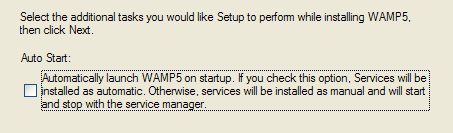
Auto-start

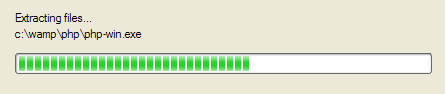
The software will now install.

Installing

After all the files are extracted we are asked for the DocumentRoot directory. This is the root directory for your website and will contain WordPress and any other files you want accessible through the webserver. Unless you have a specific reason, go with the default.
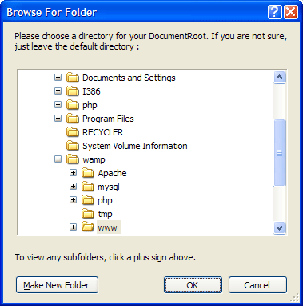
Document root

Next we are asked for the default browser. Your choice here is not really important, so pick whichever browser you prefer.
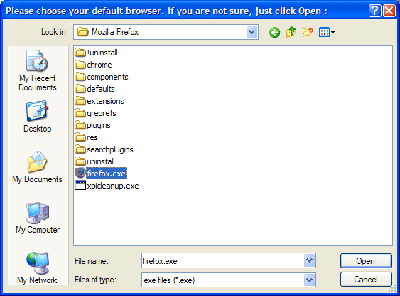
Browser preference

And that's it! We now have a fully working webserver on our computer. This same software is used in hundreds of thousands of websites across the world. We also have MySQL to provide our database, and PHP to run WordPress.

Help me to save time by reading these instructions!

If you are asking a question please read the FAQ to see if it has already been answered. All support questions should be directed to the support forum.

Share:
  • Digg
  • del.icio.us
  • Facebook
  • Reddit
  • StumbleUpon

Comments (page 4 of 4)

Page: 1 2 3 4
  1. John( author ) :

    Dec 31, 2007 12:13 am | Reply

    Thanks Uwem, this requirement seems to have changed since I wrote the article so I've updated the text to reflect it.

  2. --Deb :

    Dec 31, 2007 10:04 am | Reply

    This is a fabulous tutorial--clear, thorough, all things good--but I'm still stuck (grin). I'm on page 3 at the "Now test the virtual host by browsing to the URL: http://local.urbangiraffe.com/phpinfo.php" spot, and . . . it's not working. Of course, I've never done anything like setting up a website before, so this is all new to me, but still, I have no idea where I went wrong.

    And, no, when I try going to "http://127.0.0.1/phpinfo.php" as mentioned in an earlier comment, nothing happens, I just get a "website not found" error message.

    Although, while I created a .php file with the text "<?php phpinfo(); ?>" in it, I have no idea what that's supposed to look like (I know NOTHING about php), and am not even sure I've got it saved in the correct place. "C:/wamp/www/dummyname.com/phpinfo.php"--right?

    Any ideas? (Man, I just hate feeling stupid!)

  3. Zoom :

    Dec 31, 2007 2:32 pm | Reply

    Hey thx alot. Just used it to setup the blog on my local machine. Some steps were confusing though. Like setting up the sub-directory folder(took me a while to understand what i had to do, im new =)). Anyways thx alot.

  4. John( author ) :

    Jan 2, 2008 12:50 am | Reply

    Deb, does http://127.0.0.1 work? If not then your webserver environment isn't setup correctly. Try going through the steps again, or maybe even removing it and starting from scratch. If it does work then does http://local.dummyname.com work? If not then your hosts file is probably incorrect.

    If you've configured WAMP appropriatley then C:/wamp/www/dummyname.com/phpinfo.php will be correct. If not, try C:/wamp/www/phpinfo.php and http://127.0.0.1/phpinfo.php to check if it's working.

  5. --Deb :

    Jan 2, 2008 11:10 pm | Reply

    I've gone back and rechecked everything so many times, but really, have no idea what I'm doing, but I DO type accurately and follow directions well. So far as I can tell, I've followed all the steps correctly and am getting frustrated enough that giving up is sounding like a GOOD idea, no matter how much I want to be able to do this! (Because, really, this sounds SO good.)

    To answer your questions, with WAMP running, http://127.0.0.1 brings me to the WAMP5 homepage. When WAMP is NOT running, I get a "page not found" message. (And of course, at this point, I can't remember what I USED to get with this address, back before I installed WAMP.)

    http://local.dummyname.com gives me a "server not found" error message, along with "Problem loading page." Which is also exactly what I get with http://127.0.0.1/phpinfo.php.

    So . . . really, no idea. I've followed all the steps (so far as I can tell) and have checked and rechecked everything, but since it's simply not working . . . I have no idea.

    I appreciate your help, though! This might just have to remain a complete mystery....

  6. John( author ) :

    Jan 10, 2008 1:05 am | Reply

    Deb, if http://127.0.0.1 is working then you have correctly installed WAMP. If http://local.dummyname.com is not working then you have not modifed your hosts file successfully. You may want to read the FAQ where someone else mentions about doing this on Vista (I don't know if this is what you are using).

  7. John Rocheleau :

    Jan 12, 2008 9:38 pm | Reply

    Hi there,

    Thanks so much for continuing to answer all our questions. And on that note, here's another for you. I have gone through all 21 pages of comments, but cannot see this addressed.

    I installed the Wamp5 WampServer version 2.0, and it is running fine. I ftp'd my Wordpress site (brand new install) from BlueHost to my computer and used the export function in cPanel phpMyAdmin to get my database and contents. I went through everything here and all is working fine except this: When I type in http://local.mysitename I get the Wordpress installation screen rather than the login that I would get on the live site. I can't seem to figure out why this has happened. All the tables are there in the database in the local phpMyAdmin, and the user I created has full database-specific privileges for that database. All edits to the various files were done, and all previous tests were successful.

    Am I right in thinking that if the communication with the database were correct that the login screen would come up and not the install screen? Or is it another issue causing this? I don't want to have to install WordPress fresh locally, since I think this would then create a new database, and then would not be the same as my live site. I suppose one good thing is that I haven't done any work yet on my live site, other than create the title and set some preferences. I could just start fresh here, but I may screw things up when I upload it all to the server at BlueHost. I would rather be able to access locally what I have currently live. What could I be missing (apart from success :-) ?

    Thanks bunches,
    John

  8. John Rocheleau :

    Jan 14, 2008 6:55 pm | Reply

    I have solved the problem I posted for help 2 days ago.

    In case it helps anyone else out there, the problem I had in connecting properly to my local copy of WordPress was caused by using Notepad to edit the wp-config file.

    My Son solved this for me. He said that Notepad should never ever be used to edit config files, since it can delete the hidden carriage returns, among other things. He was right. He suggested that I instead use the file manager in cPanel on BlueHost where my site is live, to copy the file to another convenient location for editing; edit the file ensuring the language is set properly (cPanel will guide you there), then save and download the file to your computer (then of course delete the copied file from the live site server).

    As soon as I did that, the site came up properly with the login, the same as the live site, and everything is exact and working correctly.

    So the moral of the story is: do not use Notepad to edit config files. I hope that helps someone out there (and by the way, Notepad seemed to save correctly, in that it saved the file as a php file, so don't be fooled by that).

    John

  9. Steve :

    Jan 28, 2008 11:20 pm | Reply

    I have installed and uninstalled WAMP several times and always run into the same problem. Everything is working per the tutorial until I create the .htaccess file. Once I do that and put it in the c:\wamp\www\sitename.com directory, I get the following error message. In addition, once I create the .htaccess file, entering http://local.sitename.com/phpinfo.php no longer works and returns the same error...without .htaccess, http://local.sitename.com/phpinfo.php works as advertised. I used notepad++ to create the .htaccess file.

    Internal Server Error

    The server encountered an internal error or misconfiguration and was unable to complete your request.

    Please contact the server administrator, webmaster@localhost and inform them of the time the error occurred, and anything you might have done that may have caused the error.

    More information about this error may be available in the server error log.

  10. John Rocheleau :

    Jan 29, 2008 1:38 pm | Reply

    Hi Steve,

    I don't know if I can help but the htaccess rewrite wouldn't work for me either at first, though I could bring up the phpinfo.php using that address, but I couldn't using the re-written address to test the rewrite function.

    The problem in my case was that the Wamp server did not have the apache rewrite_module enabled by default. I simply enabled it (which took a couple tries to get the check mark to indicate it was enabled) and it all worked fine. To enable the rewrite_module, go into the Wamp menu then Apache, then Apache Modules, and you'll see if it has a check mark next to the listing; if not, check it, exit the menu, then go back in to see if it remained checked. After that maybe restart all services to make certain.

    Also make certain that the editor you use is correct for editing these file. Notepad is not good enough if that's what you are using. It can delete the hidden carriage returns on saving, and other problems. Instead, you can get "EditPad Lite" (google it) for free, and it will handle any file correctly. I had a major issue that was caused by using notepad to edit my config files. Best to be safe.

    Hope some of that helps,
    John

  11. Monika Mundell :

    Feb 16, 2008 8:52 am | Reply

    Hi, I installed WAMP onto my local server and everything runs well until I try to look at my actual blog. I manage to login fine through http://localhost/wp-login.php and see my WordPress admin site. But when I click on "view site" next to my title or even "view Post" it always links me to the http://localhost/ with the WAMPs homepage info. It talks about the extension, tools and my projects and I have no idea why it does this? Could anybody pleasehelp?

  12. Steve :

    Feb 19, 2008 2:13 pm | Reply

    After reviewing the instructions again very carefully (and then, FOLLOWING the instructions...all of them ;) WAMP and WordPress worked as advertised. One mistake I made was in trying to navigate to word press within Firefox by typing in C:, navigating to the location, and double clicking, which resulted in file:\\\ being dropped in as the URL instead of http://localhost/. Once I figured that out, everything worked.

    However, I'm still a bit confused on the relationship of the database and phpMyAdmin especially within the context of running more than one blog...how do you run more than one wordpress blog on the same machine? Do I set up a new database for each blog and, if so, how do I tell WAMP to switch back and forth...or, is that automatic when I launch the particlar http://localhost/?

    Thanks for all the support you have provided.

  13. John( author ) :

    Mar 4, 2008 2:37 pm | Reply

    Steve, there are different ways to have multiple blogs on one machine. One is with a new database, another is by changing the database prefix (it's one of the questions you are asked when installing WordPress). Whichever method you chose you tell WordPress which data you want when configuring it - the wp-config.php file contains details of which database, username, password, and database prefix it should use.

    Monika, did you configure the blog URL correctly in the Options/General administration page?

  14. Arthur :

    Mar 6, 2008 4:57 am | Reply

    Hi there

    I'm new to this and found this how to very helpfull however my install to what it seems went ok but now I'm stuck. The http://local.arsenalogy.co.uk/phpinfo.php still works fine and http://localhost/phpinfo.php work fine as well.

    Problems I have come accross:

    1 .htaccess when creating the file it does not take me back to http://local.arsenalogy.co.uk/phpinfo.php

    2 When I try and install the wordpress software I get the follwing error:

    500 Internal Server Error
    The server encountered an internal error or misconfiguration and was unable to complete your request.

    Please contact the server administrator, webmaster@localhost and inform them of the time the error occurred, and anything you might have done that may have caused the error.

    More information about this error may be available in the server error log.

    I'm not sure what is wrong here please can someone help?

    Arthur

  15. Arthur :

    Mar 6, 2008 7:10 am | Reply

    I have managed to install it now finally i think there was an issue with wordpress files somewhere, not sure why.

    Now I have a static IP and I want to use it for now to be able to view my blog online I think this is the ultimate point for setting this up in the first place. I have setup port forwarding on my router for port 80 going to my machine where wordpress is installed. I have changed the Blog url to http://staticIP//arsenalogy.co.uk/wp where all my wordpress files are, now it sometimes doesn not load at all as if it was timing out won't load properly it looses the layout and theme completely, I only get the proper theme layout on the local machine. I have not started bloggin yet as I do want to set it up properly to start with. Is there anything I can do to the local hostfile? I have noticed it crated a lot of websites with the localhost IP address, there was a huge list there I deleted it and recreated it again. Your help is appreciated!

    Cheers

    A

  16. John( author ) :

    Mar 7, 2008 5:16 am | Reply

    Arthur, this guide doesn't deal with making a local installation of WordPress available to the internet. Unless you have specific reasons, or know exactly what is involved, you will find it a lot easier using shared hosting for your site. The address http://staticIP//arsenalogy.co.uk/wp doesn't make any sense, and I suspect that this is why your CSS files are not loading. Remember that your local host file has no affect on what people on the internet can see.

  17. Arthur :

    Mar 7, 2008 5:22 am | Reply

    John

    Thanks for your response. What I want to do is host it on my own web server as my hosting comapny doesnt really care if it works or not and there are plenty of issues with .php file persmissions so as you can understand I much rather to do it on my own webserver and host it my self.

    I have now bought a domain name and have pointed www dns record to my static IP address, I'm an Arsenal supporter and would like to run my blog about the club etc...

    http://www.arsenaltalk.co.uk should be pointing the dns www record to my static ip which then is forwarded for port 80 on my router where the blog is and I believe this should br working no problem.

    Is there any other changed I need to make on my local machine for this to work properly?

    Your help is appreciated.

    Arthur

  18. John( author ) :

    Mar 9, 2008 6:03 am | Reply

    Sorry Arthur, but I don't know how to get a local machine on the internet.

  19. Gav :

    May 19, 2008 2:16 am | Reply

    Hiya,

    Can I continue to use my online mySQL database - essentially I want to set this up on a a network drive at work so everyone has access to it, but I don't have access to the server per se. Basically the database would still be online, but the address to call the blog and the files would all be locally hosted - basically to keep any people who are not on our intranet out!

    Any advice much appreciated,

    Cheers,

    Gav

  20. BlogsDNA :

    Aug 8, 2008 6:48 am | Reply

    I am trying to install Wordpress 2.6 on Windows 2003 server with Apache 2.0 and PHP5, every thing goes smooth untill installation of wordpress but after installing when i try to login to wordpress i en up with directory listing of wp-admin folder some how admin pages is not opening and i can just see files as directory listing of wp-admin folder any idea why this is happing (i cant use xampp or wampp )

  21. Peter Blake( subscriber ) :

    Sep 22, 2008 5:48 am | Reply

    I have 2 questions.

    1.
    I'm up and running with Wamp and WordPress and have downloaded a theme (Mimbo 2.2 by Darren Hoyt) to the themes folder. I'm having trouble changing the html of the opening page, with reference to images. I save the changes but they won't save. After saving I still don't see the images and if I close down and then open again the saves haven't been saved either.
    Am I doing something fundamentally wrong?

    2.
    Here is the code

    Introduction

    To get the correct image I have tried changing the code to
    <img src="http://localhost/C/wamp/www/wordpress/wp-content/themes/mimbo2.2/mimbo2.2/images/leadpic.jpg"
    (I don't know why I've got 2 mimbo2.2 folders!)
    Is the file path right or wrong? If wrong, could you suggest what it should be please?

    Many thanks

  22. John( author ) :

    Sep 23, 2008 1:42 am | Reply

    Why wont they save? Is there an error message?

    Yes, the path in your image is wrong. Remember that you arent specifying a directory path on your computer but a URL to your local website. WAMP will make the directory c:\wamp\www appear at http://localhost, so you only need to specify the path from there. For example, if your image is C:/wamp/www/wordpress/wp-content/themes/mimbo2.2/mimbo2.2/images/leadpic.jpg then the URL is http://localhost/wordpress/wp-content/themes/mimbo2.2/mimbo2.2/images/leadpic.jpg. You can even remove the http://localhost part and just have a purely relative path.

    It sounds like you've installed your theme in a subdirectory of the same name as the theme. You would be better off moving the mimbo2.2/mimbo2.2 directory up one level

  23. Peter Blake :

    Sep 26, 2008 6:02 pm | Reply

    Thanks John, I'm afraid events have taken over. I won't be able to try to correct it until next Monday, but thanks for the advice. I will be in touch.

  24. Shane :

    Oct 23, 2008 12:24 pm | Reply

    Please allow me to share this video tutorial I created on Installing WordPress Locally with your community.
    http://www.youtube.com/watch?v=biQWyBcYSX4

    Regards
    Shane

  25. Web Unleashed :

    Oct 30, 2008 2:36 am | Reply

    A really nice Wordrpess tutorial. Maybe my post on overcoming the limits of phpMyAdmin when importing large databases could be of some help to your readers. Import large sql databases with phpMyAdmin (increase size limit)
    Thanks
    Ted

  26. marc :

    Dec 3, 2008 11:50 am | Reply

    Hi John
    I followed your tutorial (very good and easy to understand) but at the point where i was asked to edit the:

    "$cfg['Servers'][$i]['user'] = 'root'; // MySQL user
    $cfg['Servers'][$i]['password'] = ''; // MySQL password"

    in the config.inc.php file I hit a brick wall as the above text is not in the config file so I cannot add the password.
    I have tried uninstalling and re installing but I still get the same error (Http 403 forbidden) message when
    I try to log into the phpMyAdmin
    Any suggestions?

  27. John( author ) :

    Dec 7, 2008 9:58 am | Reply

    Marc, it looks like a newer version of the software may have changed the location. You should head on over to phpMyAdmin to find the new password location

  28. flaflaland :

    Dec 7, 2008 3:00 pm | Reply

    Finally a good explanation about wordpress installation, I've found this tutorial already but this one is the most detailed...
    It will be great to explain how to switch this install as a server, and not only as a local site. It will be great if you could explain it...(Stuck to the RSS comment)

  29. mitra :

    Feb 11, 2009 5:07 am | Reply

    When I tried to install wordpress by entering:"http://localhost/wordpress/wp-admin/install.php" into the url of the browser, I got the following respond:"Fatal error: Call to undefined function did_action() in C:\xampplite\htdocs\wordpress\wp-includes\functions.php on line 1345
    "What went wrong?

    • John( author ) :

      Feb 11, 2009 5:15 am | Reply

      You should direct this question to the wordpress.org support forums

  30. mitra :

    Feb 19, 2009 2:29 am | Reply

    my current url is http://www.abc.com/page/aboutus and this url i want to change it to

    http://www.abc.com/aboutus ...so for this i have tried with the redirect plugin .but still its not working ..
    any other options plz help me out..

  31. Ellis Benus :

    Feb 23, 2009 3:49 pm | Reply

    A thousand thank you's for this tutorial.

    Great post.

  32. RaiulBaztepo :

    Mar 28, 2009 4:57 pm | Reply

    Hello!
    Very Interesting post! Thank you for such interesting resource!
    PS: Sorry for my bad english, I'v just started to learn this language ;)
    See you!
    Your, Raiul Baztepo

  33. Steve :

    Apr 24, 2009 6:07 pm | Reply

    I had to reformat my hard drive and, as a result, needed to reinstall WampServer and Wordpress. Originally, I followed the tutorial and had three separate Wordpress blogs running on my local machine.

    This time, I've installed WampServer 2.0. I've edited my hosts, httpd.conf file and created the phpinfo.php file (all with Notepad++). My host file includes:

    127.0.0.1 localhost
    127.0.0.1 local.dcblog.com

    and, to the end of my httpd.conf file, I added:

    NameVirtualHost 127.0.0.1

    DocumentRoot "C:/wamp/www"
    ServerName localhost

    DocumentRoot "G:/Root/www/dcblog.com"
    ServerName local.dcblog.com
    ErrorLog logs/dcblog_error.log

    When I try the "localhost" url, I get the WampServer homepage.

    However, when I try "local.dcblog.com" I get a 403 Forbidden. You don't have permission to access /phpinfo.php on this server.

    The directory "G:/Root/www/dcblog" exists on my G drive. I've tried different variations including dropping the idea of using a different drive; going back and using the tutorial's original Document root. Same problem.

    Any suggestions on how to correct this error? This is the same config I had before, but this time I just can't seem to tweak the system to behave.

    • Steve :

      Apr 25, 2009 9:09 am | Reply

      As a followup to my previous question: I finally chucked wampserver 2.0 and used Revouninstaller to completely uninstall. I made sure everything was gone, including any subdirectories. I then reinstalled WAMP5 v. 1.7.4. Same problems and error messages as with wampserver. I've googled the problem and found it is not unusual and is probably related to how I have the directories configured within http.conf. However, no matter how I twiddle with it, I can't find a solution. I want my wordpress files to reside on a drive other than 'C'. I had it working once; now, I'm stumped. Thanks!

      • Steve :

        Apr 25, 2009 8:00 pm | Reply

        o.k. I "solved" my problem by digging DEEP and finally found a backup of my original http.conf file. Replaced my new http.conf with the old one and: success. I'm still curious as to WHY the new install wouldn't work. I'm convinced its operator error, but have not been able to dig it out.

  34. Sean :

    Jun 11, 2009 1:53 pm | Reply

    John -- Thanks for a great tutorial. One question:

    Do I need to write .htaccess and mod_rewrite rules to redirect the external links to blog posts (that came in with my import of my online blog database) to the new locations within the imported version of my database?

    Sean

    • Sean :

      Jun 11, 2009 2:37 pm | Reply

      Hi John -- here's a bit more info:

      - my blog index.php comes up fine at local.profitscapes.com . I see all the pics, text, etc as the online version.

      - every link to a blog post, category, etc., however, points to its online location (for example, http://profitscapes.com/2009/04/new-ways-for-attorneys-to-grow-billable-hours/ ) -- NOT my local version. I checked my local database, and the data is there, but the wp_posts field holds links to the online locations.

      Thoughts?

      Thanks,
      Sean

      • Sean :

        Jun 11, 2009 6:41 pm | Reply

        Hi John,

        I've figured out a few things -- I tweaked my database siteurl and home settings so that now my blog posts, pics, etc. point to a local source, but when I click on any blog post, I get a 404 error.

        A sample broken link:

        http://local.profitscapes.com/2009/04/new-ways-for-attorneys-to-grow-billable-hours/

        My virtual host info is:

        # NameVirtualHost 127.0.0.1

        #
        # DocumentRoot "C:/xampp/htdocs"
        # ServerName localhost
        #

        #
        # DocumentRoot "C:/xampp/htdocs/BurnsGroup_Site/blog"
        # ServerName local.profitscapes.com
        #

        #
        # DocumentRoot "C:/xampp/htdocs/BurnsGroup_Site/consult"
        # ServerName local.consult.profitscapes.com
        #

        Any tips would be greatly appreciated,
        Sean

  35. Kuruvi :

    Jun 25, 2009 4:27 am | Reply

    Really useful stuff. Explained nicely. keep writing new ideas...
    Thanks!!!

Page: 1 2 3

Pings & Trackbacks

computechgroup.com, raincontreras.com, blog.bouckenooghe.com, blog.bouckenooghe.com, superaff.com, garyslinger.wordpress.com, topcool.wordpress.com, jackofallblogs.com, superaff.com, kintespace.com, ilearn.blogsome.com, bloghelper.is-there.net, ustommymc.net, ctbizblogs.com, mrblogmeister.com, cuyler.wordpress.com, viewfromrockytop.com, tendance.wordpress.com, sitedotiago.com, truffin.com, juanochoa.com, blogunion.org, bill2me.com, transminds.com, bill2me.com, blog.gomilko.com, danubuntu.wordpress.com, amalzone.wordpress.com, un-reachable.net, rbn.com.ar, movingtofreedom.org, nspeaks.com, thecoloringgreen.wordpress.com, aaronsbuyersguide.com, minusprice.com, netprofitstoday.com,

Leave a Reply


XHTML: You can use these tags: <a href="" title=""> <abbr title=""> <acronym title=""> <b> <blockquote cite=""> <cite> <code> <del datetime=""> <em> <i> <q cite=""> <strike> <strong>

Help me to save time by reading these instructions!

If you are asking a question please read the FAQ to see if it has already been answered. All support questions should be directed to the support forum.

Home | Main content | Software | Terms & Conditions | Sitemap | John Godley © 2009