
| Download: | Search Regex |
|---|---|
| Version: | 1.4.11 |
| Supports: | WordPress 2.9.2 – 3.1.1 |
| Other: | WordPress.org | SVN |
| Support: | Forum |
Search Regex adds a powerful set of search and replace functions to WordPress. These go beyond the standard searching capabilities, and allow you to search and replace almost any data stored on your site. In addition to simple searches you have the full power of PHP’s regular expressions at your disposal.
The driving force behind this plugin is to aid in website migration and upgrading. If you’ve ever done either of these then you know the pain of having to go back through all your data, changing URL paths and fixing things. With this plugin you can reduce this work to a search and replace pattern and the job is finished in seconds.
Why would you want this? The primary reason for the plugin was to aid in relocating directories. It’s a real pain to manually go through every post and change image directory names. With this plugin all that was required was a simple search and replace pattern, and the job was finished in a few seconds.
Features include:
- Simple search and replace
- Advanced regular expression search and replaces, including back references and capture groups
- Search previews with inline replacing
- Perform searches in post & page content, excerpt, titles, URL, and meta-data, as well as comment content and author data
- Full support for WordPress roles. You can only search and replace in posts you have access to
- Fully localized
Get the Flash Player to see this movie.
Installation
Installation is just like any WordPress plugin:
- Download Search Regex
- Unzip
- Upload directory to
/wp-content/pluginson your server - Activate the plugin
- Use
Search Regexfrom theManage/Search Regexmenu
You can find full details of installing a plugin on the plugin installation page.
Usage
Searches can be performed from the Search Regex submenu, contained within the main Manage menu of the administration interface. Once there you will be presented with the following interface:
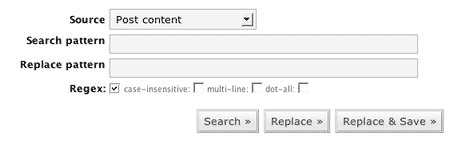
The search and replace patterns are, as you would expect, where you enter what you want to search for and what you want to replace it with. Several options exist to refine the searching capabilities, which will be explained later. You can also chose the data source.
When you have entered your patterns you need to press one of the search buttons:
- Search – Just do a search and show the results
- Replace – Perform a search and replace, but only show the results. The database is not changed.
- Replace & Save – As Replace, but the replacements are saved back into the database.
It should be noted that while you can enter any search pattern in a simple search, you must adhere to regular expression syntax when the regular expression mode is enabled. The plugin will detect any regular expression errors and warn you.
If you wish to remove a search pattern (i.e. search for ‘cheese’ and delete the any occurrences) then you can leave the replacement pattern empty.
Search Options
The following options modify the search:
- Regex – Enable regular expressions. Note that the search pattern can now only contained properly escaped characters. The @ character is used as a delimiter and also needs escaping.
- Case-less – Case insensitive search
- Multi-line – Enables multi-line mode (see PHP’s pattern modifiers page)
- Dot-all – Enables the dot-all mode (see PHP’s pattern modifiers page)
Results
Search results as presented as a list of found occurrences. Each result is shown in context with the surrounding data and, if enabled, the replacement context is also shown.
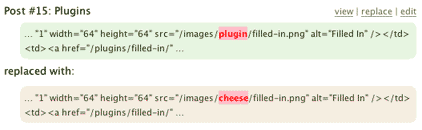
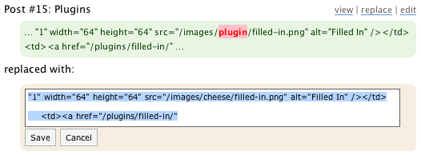
Depending upon the data source you have options to view, edit, or replace the data. Additionally, if you double-click on the highlighted search or replace patterns then an inline edit box will appear allowing you to directly edit the data.
Examples
The simplest case is changing paths:
/wp-images/
to
/images/
A more complicated regular expression version to only move PNG images:
/wp-images/(.*?).png
to
/images/png/$1.png
Warning
You should always use the Search & Replace preview before saving to the database. I will accept no responsibility for any damage caused to your data. If you are in any doubt then backup your database first.
Support & Bugs
Support and feature requests should be made through the Search Regex support forum. You can contact me directly but I spend a very limited amount of time on direct support and you stand a better chance of being answered through the forum.
If you find the plugin useful then please do consider making a donation – it is appreciated and helps towards the maintenance of the plugin.
Thanks!