WordPress Preparation
Our configuration of Apache and MySQL is now complete and we can turn our attention to the important part: WordPress.
There are two ways to install WordPress:
- Install a fresh copy of WordPress on a clean database
- Create a duplicate of an existing WordPress installation, complete with posts
Regardless of which you want, we need to do two database tasks before we continue.
- Create a WordPress database
- Create a WordPress database user
Both of these tasks are performed from within phpMyAdmin.
Creating a database
Creating a database is very easy with phpMyAdmin. From the front page enter the database name in the MySQL section:

Here I’ve given the database a name of ‘wordpress’. If you are duplicating a live site then use the same name you have on your live database.
Once you click create you will be told that a new database has been created and the left menu should be updated to contain this database. That’s all we need to do.
Database user
We shouldn’t use the root account for WordPress, so here we create a new user. If possible our new user account should match the one used on our live WordPress installation.
Go back the phpMyAdmin privileges screen and this time select ‘add a new user’

Now enter the details for your new WordPress user. Make sure to set the ‘host’ to ‘local’ – this ensures only our local machine can login as the user. Don’t add any global privileges.
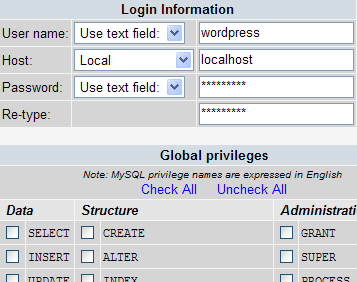
Here I’ve created a user called ‘wordpress’ and given it the password ‘wordpress’. If you are creating a duplicate of a live site then set the username and password to whatever you use there.
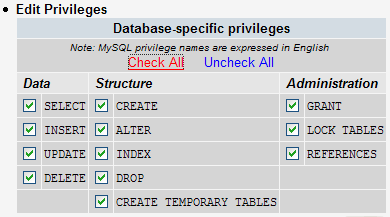
Next we need to add privileges for this user to access the WordPress database. On the returning screen is a ‘Database-specific privileges’ section:

Select the WordPress database from the drop-down list. The screen will then refresh and you can select ‘Check All’ to give the user full access to the WordPress database.
Hi John
I followed your tutorial (very good and easy to understand) but at the point where i was asked to edit the:
“$cfg[‘Servers’][$i][‘user’] = ‘root’; // MySQL user
$cfg[‘Servers’][$i][‘password’] = ”; // MySQL password”
in the config.inc.php file I hit a brick wall as the above text is not in the config file so I cannot add the password.
I have tried uninstalling and re installing but I still get the same error (Http 403 forbidden) message when
I try to log into the phpMyAdmin
Any suggestions?
Marc, it looks like a newer version of the software may have changed the location. You should head on over to phpMyAdmin to find the new password location
Finally a good explanation about wordpress installation, I’ve found this tutorial already but this one is the most detailed…
It will be great to explain how to switch this install as a server, and not only as a local site. It will be great if you could explain it…(Stuck to the RSS comment)
When I tried to install wordpress by entering:”http://localhost/wordpress/wp-admin/install.php” into the url of the browser, I got the following respond:”Fatal error: Call to undefined function did_action() in C:\xampplite\htdocs\wordpress\wp-includes\functions.php on line 1345
“What went wrong?
You should direct this question to the wordpress.org support forums
my current url is http://www.abc.com/page/aboutus and this url i want to change it to
http://www.abc.com/aboutus …so for this i have tried with the redirect plugin .but still its not working ..
any other options plz help me out..
A thousand thank you’s for this tutorial.
Great post.
Hello!
Very Interesting post! Thank you for such interesting resource!
PS: Sorry for my bad english, I’v just started to learn this language 😉
See you!
Your, Raiul Baztepo
I had to reformat my hard drive and, as a result, needed to reinstall WampServer and WordPress. Originally, I followed the tutorial and had three separate WordPress blogs running on my local machine.
This time, I’ve installed WampServer 2.0. I’ve edited my hosts, httpd.conf file and created the phpinfo.php file (all with Notepad++). My host file includes:
127.0.0.1 localhost
127.0.0.1 local.dcblog.com
and, to the end of my httpd.conf file, I added:
NameVirtualHost 127.0.0.1
DocumentRoot “C:/wamp/www”
ServerName localhost
DocumentRoot “G:/Root/www/dcblog.com”
ServerName local.dcblog.com
ErrorLog logs/dcblog_error.log
When I try the “localhost” url, I get the WampServer homepage.
However, when I try “local.dcblog.com” I get a 403 Forbidden. You don’t have permission to access /phpinfo.php on this server.
The directory “G:/Root/www/dcblog” exists on my G drive. I’ve tried different variations including dropping the idea of using a different drive; going back and using the tutorial’s original Document root. Same problem.
Any suggestions on how to correct this error? This is the same config I had before, but this time I just can’t seem to tweak the system to behave.
As a followup to my previous question: I finally chucked wampserver 2.0 and used Revouninstaller to completely uninstall. I made sure everything was gone, including any subdirectories. I then reinstalled WAMP5 v. 1.7.4. Same problems and error messages as with wampserver. I’ve googled the problem and found it is not unusual and is probably related to how I have the directories configured within http.conf. However, no matter how I twiddle with it, I can’t find a solution. I want my wordpress files to reside on a drive other than ‘C’. I had it working once; now, I’m stumped. Thanks!
o.k. I “solved” my problem by digging DEEP and finally found a backup of my original http.conf file. Replaced my new http.conf with the old one and: success. I’m still curious as to WHY the new install wouldn’t work. I’m convinced its operator error, but have not been able to dig it out.
John — Thanks for a great tutorial. One question:
Do I need to write .htaccess and mod_rewrite rules to redirect the external links to blog posts (that came in with my import of my online blog database) to the new locations within the imported version of my database?
Sean
Hi John — here’s a bit more info:
– my blog index.php comes up fine at local.profitscapes.com . I see all the pics, text, etc as the online version.
– every link to a blog post, category, etc., however, points to its online location (for example, http://profitscapes.com/2009/04/new-ways-for-attorneys-to-grow-billable-hours/ ) — NOT my local version. I checked my local database, and the data is there, but the wp_posts field holds links to the online locations.
Thoughts?
Thanks,
Sean
Hi John,
I’ve figured out a few things — I tweaked my database siteurl and home settings so that now my blog posts, pics, etc. point to a local source, but when I click on any blog post, I get a 404 error.
A sample broken link:
http://local.profitscapes.com/2009/04/new-ways-for-attorneys-to-grow-billable-hours/
My virtual host info is:
# NameVirtualHost 127.0.0.1
#
# DocumentRoot “C:/xampp/htdocs”
# ServerName localhost
#
#
# DocumentRoot “C:/xampp/htdocs/BurnsGroup_Site/blog”
# ServerName local.profitscapes.com
#
#
# DocumentRoot “C:/xampp/htdocs/BurnsGroup_Site/consult”
# ServerName local.consult.profitscapes.com
#
Any tips would be greatly appreciated,
Sean
Really useful stuff. Explained nicely. keep writing new ideas…
Thanks!!!
Two years later and this tutorial proves to be easily followed and an absolute fantastic resource! Thanks so much!
Hi John,
Thanks for the tutorial!
I’m a bit stuck with the wordpress installation. I can get as far as the page that asks for Blog title and email. From another tutorial, I gather that i am supposed to see a “Successful installation” message with my login and password. However, my page stays stuck after i key in blog title and email.
Any idea how to resolve this or what did I miss? Thanks in advance!
This was an awesome tutorial. One of the most unambiguous I’ve come across. Everything worked first time.
Thanks
Hi John, Thanks for the great tutorial which I’ve used successfully on Windows XP. The instructions are very clearly explained and the accompanying images are so useful.
However, I’ve just purchased a new Windows Vista computer and I’m stuck on page 3 of your tutorial – I can’t locate the “host” file in the Windows 32 system, drivers, etc folder – there isn’t such a folder. Plus there’s also a Windows 64 bit system folder.
Any advice on how to finish installing WAMP on the Vista system would be greatly appreciated as I have several sites in development that I’d like to use the new computer for.
Cheers, and thanks in advance for any help you can give ……..
Oops – turns out all I needed to do was turn on the hidden files to find the etc folder and the host file. Thanks to the folks at sitepoint.com forum who pointed that out to me!
Thank you, thank you, thank you! This is just what I was looking for. I’m a newbie to web design and PHP etc., but have been tasked with redoing my small library’s website. After deciding to use WordPress as the CMS, our tech guy wouldn’t allow me to install it on our local server until I “knew what to do.” Now I’ll do the install on my local computer until I get the hang of it. I’ll show him!! 🙂 Thanks again.
I have a problem with phpMyAdmin. When I load it from the link on the WAMP homepage, it gives me the error “Cannot load mysqli extension. Please check your PHP configuration. – Documentation.” I checked the documentation and it says that the mysqli extension not being found means that php_mysql.dll can’t be found. I checked the php bin that came with WAMP and in /php/ext/ the file php_mysql.dll is there. I changed php.ini to have the following:
...

;extension_dir = "./"

extension_dir = "./ext"

...

;extension=php_mysql.dll

extension=php_mysql.dll

...
Thats what another site said to do, and that didn’t work. I added the file libmySQL.dll to my system32 folder which another site said to do, and that didn’t work. Can anyone tell me how I can get mySQL to find php_mysql.dll?
Hi John
I followed your tutorial (very good and easy to understand) but at the point where i was asked to edit the:
“$cfg[‘Servers’][$i][‘user’] = ‘root’; // MySQL user
$cfg[‘Servers’][$i][‘password’] = ”; // MySQL password”
in the config.inc.php file I hit a brick wall.
the path to config.inc.php i have in the new wamp software is x:\wamp\apps\phpmyadmin3.2.0.1\config.inc.php
When i change the password in that file all i get is;
Error
MySQL said: Documentation
#1045 – Access denied for user ‘root’@’localhost’ (using password: NO)
when i try to connect to phpmyadmin
i just cant get this to work please help?
not sure why others are having a problem doing this. It was pretty clear how to install WordPress using WAMP from reading your post. I think I’m going to test this out, only this time, i’ll use Apache on Ubuntu 🙂
Thank you so much 🙂
I already had a local installation of wordpress on wamp but I needed to develop two more sites and was getting the ebejeebies at how that was going to happen without running into loads of problems. After a bit of searching and lots of – no hit but plenty of miss – I came across your instructions and it worked like a dream.
I now have three installations of wordpress running from the same installation of wampserver 2.1e
You are the dogs 😉
Hi John,
Looked at your instructions but not sure if your site is applicable to what I want to do. I want to know if I can download the WordPress installation to create my own website to a location like a flash drive and/or a Windows computer so I can take it with me and be able to work on my site from another computer other than my own laptop, which is a 2004 macbook.
Thanks,
John H