This page is now deprecated. Please visit the Redirection plugin website
Redirection is a WordPress plugin to manage 301 redirections, keep track of 404 errors, and generally tidy up any loose ends your site may have. This is particularly useful if you are migrating pages from an old website, or are changing the directory of your WordPress installation.
Features include:
- Supports both WordPress-based and Apache-based redirections
- 404 error monitoring – captures a log of 404 errors and allows you to easily map these to 301 redirects
- RSS feed for 404 errors
- Custom ‘pass-through’ redirections allowing you to pass a URL through to another page, file, or website.
- Full logs for all redirected URLs
- Create redirections based upon a URL, browser, referring site, or login status
- Automatically add a 301 redirection when a post’s URL changes
- Full regular expression support
- Fully localized
- Export all redirections to CSV, XML, or Apache
.htaccessfiles - Import Apache
.htaccesfiles
Redirection is available in the following languages:
- French, thanks to Oncle Tom
- Hebrew, thanks to Rami
- Spanish, thanks to Juan
- Simplified Chinese, thanks to Sha Miao
- Japanese, thanks to Naoko McCracken
- Hindi, thanks to Ashish
- Russian, thanks to Grib – with Russian manual
- Bahasa Indonesian, thanks to Septian Fujianto – with guide
- German, thanks to Fabian Schultz
- Italian, thanks to Raffaello Tesi
- Ukrainian, thanks to WordPress Plugins Ukraine
- Arabic, thanks to Jerry John
- Brazilian Portuguese, thanks to Pedro Padron
- Dutch, thanks to Marlon Navas and Pieter Carette
- Hungarian, thanks to daSSad
- Turkish, thanks to Fatih Cevik
- Romanian, thanks to Flo Bejgu @ InboxTranslation
- Greek, thanks to Stefanos Kofopoulos
- Belarusian, thanks to Alexander Ovsov
- Lithuanian, thanks to Nata Strazda
- Czech, thanks to Martin Jurica
If you can provide a language translation then please get in touch. A PO file is provided with the plugin to be used in translating with poEdit.
Installation
Installation is just like any WordPress plugin:
- Download redirection.zip
- Unzip
- Upload to
redirectiondirectory to/wp-content/pluginson your server - Activate the plugin
- Configure options from Manage – Redirection
Note that you must have a permalinks structure setup through WordPress.
You can find full details of installing a plugin on the plugin installation page.
Core Concepts
Redirection uses three core concepts:
- Modules
- Groups
- Redirects
A module consists of many groups, and each group consists of many redirections. A module determines how the redirections will be used, and a group allows you to separate redirections into logical units. A redirection represents an action performed when a particular URL is accessed.
Don’t worry, there’s more to come!
Modules
At the most basic level, a module determines how redirections are implemented. There are three types of module:
- WordPress
- Apache
- 404 errors
The WordPress module uses WordPress to implement redirections. This means it works for all permalink-enabled sites and so has the greatest compatibility.
The Apache module, as you would expect, uses Apache to implement redirections. This means that each redirection is written to an Apache .htaccess file, giving you better performance than the WordPress module, at the cost of less compatibility and less flexibility (some features, such as redirection statistics, are only available from the WordPress module).
Separate from these is the 404 error module. This uses Redirection to keep track of 404 errors.
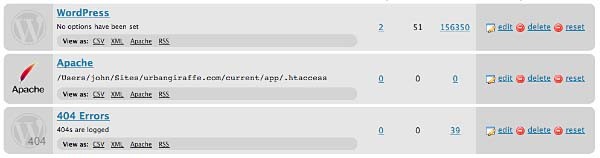
Each module can be exported to CSV, XML, or an Apache .htaccess file. You can also view logs for each module via an RSS feed
WordPress Module
The WordPress module is the default module and provides the most features. The main disadvantage of this module is that each time a URL is redirected it requires WordPress to be loaded (contrast this to the Apache module where a redirection occurs before WordPress loads).
This module is configured as follows:

These options are detailed below:
- Canonical – determine whether the
wwwshould be removed or added to your site URL. - Strip index – if enabled then any attempt to access a
index.php,index.html, orindex.aspfile will cause an automatic redirection to the same URL, minus the index file. - Time Limit – sets a site-wide PHP timeout limit. Useful if something is timing out.
- Error level – sets the PHP error reporting level. Useful for removing unwanted warnings, or for viewing hidden ones
Apache Module
Rather than using WordPress to provide redirections the Apache module writes data to an Apache .htaccess file. If you site supports these then this will give you the greatest performance, at the cost of losing a few items of functionality. For example, the Apache module provides no statistical information so it is not possible for the Redirection plugin to keep track of how many times a particular redirection has been used.
The module is configured as follows:
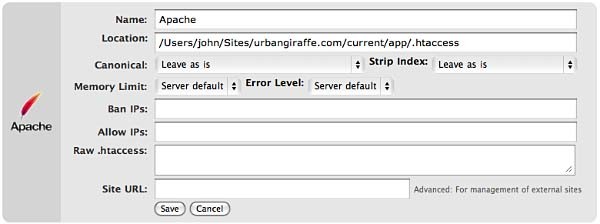
The options that differ from the WordPress module are:
- Location – the location of the .htaccess file. The default will be your site directory
- Ban IPs – prevents certain IPs from accessing your site
- Allow IPs – allow certain IPs to access your site
- Raw
.htaccess– add custom rules - Site URL – an advanced option which allows you to set the site base URL
Note that when writing to a .htaccess file the Apache module will retain any existing non-WordPress data, so you can still add custom rules.
404 Module
This module is a little different to the others in that it is designed to record 404 errors. Rather than make this a general function, as in previous versions, the power of this module comes from the fact that redirections created inside it will be ignored from the 404 log. In other words, the module records all 404 errors except the specified URLs. Combined with the RSS feed this gives you a lot of options to keep track of errors on your site.
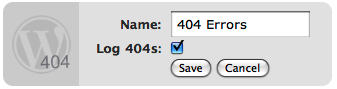
If you do want to ignore a 404 error (for example, you site may not have a favicon.ico and you don’t want this recorded) then you should create redirections as normal, but set the action to ‘Do nothing’. As for other modules you can create redirections based upon any action or rule, or matching a particular regular expression.
Groups
A group is a logical collection of redirected URLs. You can create as many groups as you wish, and groups can be re-ordered. URLs are matched based not only on the order in which they occur within a group, but the order in which groups occur within a module.
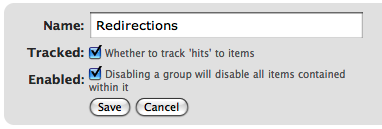
As well as allowing you to collect redirections together, you can also specify whether the redirections within a group are logged.
As an additional configuration option you can select which group an automatically generated URL is put in when a post/page or category is changed.
Using Redirection
The main idea behind Redirection is that you create several URLs that you want to redirect. These URLs are placed within a group, which in turn is placed within a module. The module determines how the URLs are redirected, and the group allows you to logically organise the URLs.
Each URL (or redirection) can be configured to behave in different ways. When creating a redirection there are several pieces of information you must provide:
- Source URL – This is the original URL that you want to redirect somewhere else
- Match – This tells the plugin how you want to match the source URL
- Action – Determines what happens if the URL is matched
- Regular expression – Tells the plugin that the source URL is a regular expression (i.e. a pattern that may match many URLs)
- Target URL – most actions have a target URL. This is typically the URL that the user will be redirected to should the pattern match

Note that items can be re-ordered and this may influence which redirection takes effect.
Matching URLs
Matching a URL is a key part of Redirection and consists of a source URL. This URL must exactly match a URL that you want to redirect. For example, your site has the page:
http://yoursite.com/oldpage/that/needs/redirecting/
The source URL for this is: /oldpage/that/needs/redirecting/. The source does not require your website address, and it is only possible to redirect a URL that exists on your website (you cannot redirect an external website, for example).
Advanced users can make use of regular expressions to reduce the number of redirections they need to create. A regular expression is basically a pattern that tells the plugin how to match. For example:
/(\d*)/(\d*)/(.*)
This pattern tells the plugin that you want to match a URL that looks like:
/2007/05/some-url/
That is, the (d*) indicates a number, and the (.*) a sequence of characters. Regular expressions are a complicated subject and this page will not attempt to give more than a passing overview of using them. If you do need more help then you should take a look at a regular expression website.
Remember that if the source URL is a regular expression then you must enable the regular expression option, otherwise Redirection will just treat you source URL as plain text.
In addition to the source URL you can also specify a match condition:
- URL only – Only matches the URL (the majority of your redirections will use this)
- URL and referrer – Matches a URL when the source and referring site matches (i.e. match the URL only when the user came from a certain website)
- URL and login status – Matches a URL when the source and user’s login status matches (i.e. match the URL only when the user is logged in)
- URL and user agent – Matches a URL when the source and user’s browser matches (i.e. when the user is using a particular type of web browser)
These special rules can be both positive and negative. For example, you can match a URL when the user is logged in (and be redirect to one URL), or when the user is not logged in (and be redirected to another URL). This makes it very easy to create custom rules where users are redirected if they are using a particular browser, or if they came from a particular website.
Actions
An action tells Redirection what to do when a source URL is matched:
- Redirect to URL – The default case and the majority of your redirections will use this
- Redirect to random post – An esoteric action that may be useful to some people
- Pass through – An advanced option that allows you to masquerade one URL as another (i.e. when the source URL is accessed it actually displays the contents of another URL without the user being aware)
- Error (404) – Causes a 404 error to be returned
- Do nothing – A dummy option that can be used if you just want to track accesses to a URL
Configuration of rules and actions
Depending on the particular combination of action and match rule you may be required to provide further details for a redirection.
Basic URL redirection
You can specify which HTTP code is used to redirect a URL (301, 302, or 307):
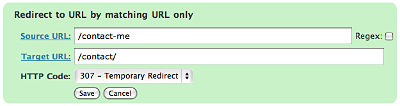
A couple of examples:
/blog/(.*) => /$1
This will match any URL that starts with /blog/, and will redirect it to the same URL but without /blog/. For example, /blog/2006/10/01/mypost will be redirected to /2006/10/01/mypost.
/2006/month_(\d+)/(.*) => /2006/$1/$2
This will match any URL that starts /2006/month_, and is then followed by a number. This will be redirected to the same URL, but without month_. For example, /2006/month_1/something will be redirected to /2006/1/something.
To replace a single dash in a URL with a space:
/tags/(.*?)-(.*?) => /tags/$1%20$2
Redirect to URL by matching user agent
This allows you to configure a redirection to occur when a specific browser (the user agent) is used:
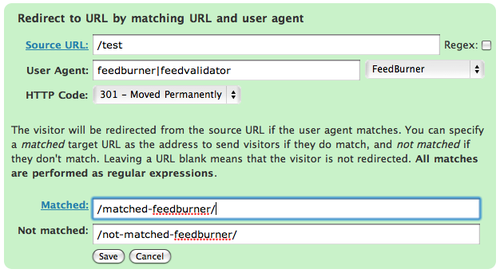
A set of pre-defined user agents is available from the drop-down menu or you can specify your own. The user agent match is always performed using a regular expression.
Two target URLs can be specified, one for if the user agent does match, and one for if it doesn’t match.
Redirect to URL by matching referrer
Similar to the user agent rule but this one looks at the referrer. That is, if a user follows a link from another site to yours, the original site is passed along by the browser (unless disabled) to your site so that you know where the user came from. Using this rule you can base your redirections upon this original site.
Redirect to URL by login status
This rule allows you to match a URL based upon the user’s WordPress login status. That is, if they are logged into your site.
Support & Bugs
Support and feature requests should be made through the Redirection support forum. You can contact me directly but I spend a very limited amount of time on direct support and you stand a better chance of being answered through the forum.
If you find the plugin useful then please do consider making a donation – it is appreciated and helps towards the maintenance of the plugin.
Thanks!