This guide is another in the Inside WordPress series and will show you how to install a WordPress plugin. While this is a relatively simple task it is one of fundamental importance to WordPress and is often overlooked. As such it is a potential cause of problems to beginners, and not being able to successfully install plugins will prevent you from accessing the very large world of WordPress plugins.

There are three ways of installing a WordPress plugin:
- Automatically through WordPress – easiest, some server setup
- Manually uploading a plugin through WordPress – medium, some server setup
- Manually uploading a plugin via FTP – more complicated, no server setup
Automatically Installing a Plugin
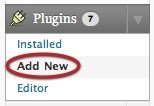
This is by far the easiest method but it does require that your server is setup in such a way as to allow modifications to the plugin directory. This is beyond the scope of this guide, but it involves giving group/other write permissions to the wp-content/plugins directory. Once setup you will be able to press on the Add New plugin menu option:
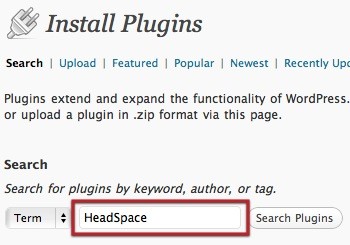
On the Install Plugin screen you can then simply enter the name of the plugin into the search field and perform the search:
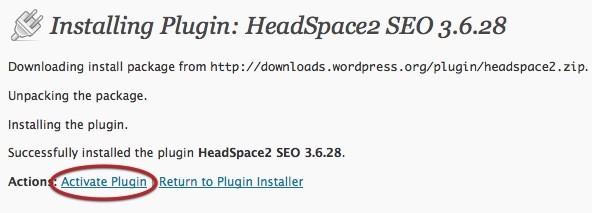
The search results should then show the plugin. Clicking on install will automatically download and install the plugin onto your blog.

When finished you can then activate the plugin – everything is done and dusted!
Manually Installing a Plugin
Downloading a Plugin
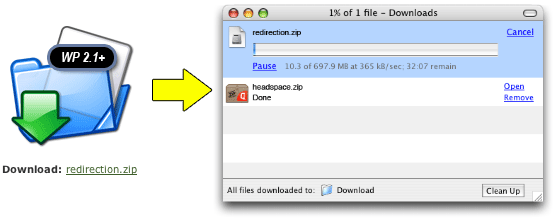
WordPress plugins are usually distributed as zip files. A zip file is a special file that allows you to store and compress many files together, resulting in a single file that is small and fast to download. Downloading a plugin consists of clicking the download link from the appropriate website and allowing the browser to store the file somewhere on your computer:
Installing a downloaded plugin via WordPress
From the WordPress plugin menu click on Add New:
Instead of searching for a plugin you can directly upload your plugin zip file by clicking on Upload:
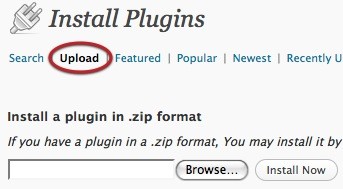
Use the browse button to select the plugin zip file that was downloaded, then click on Install Now. The plugin will be uploaded to your blog and installed. It can then be activated (see Automatically Installing a Plugin).
Installing a downloaded plugin via FTP
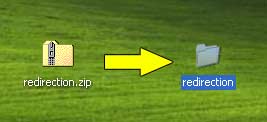
Once downloaded the file needs to be unzipped, a term that refers to the de-compressing and restoring to normal of a zip file. Depending what kind of computer you are using this is either a very simple stage, or one that requires additional software. Recent versions of Windows already understand zip files, as will OS X. If they don’t then you will need to download and install something like 7-Zip, Winzip, or StuffIt.
When ready, unzip the plugin:
Now you will need to upload the plugin to your site using FTP. Before you continue you should have your FTP username and password available (these are the same details provided to you by your web host) and have installed an FTP client. For Windows you can use FileZilla, for Mac OS X you can use Cyberduck. Once you have the FTP software installed you should start it and open a new connection. Enter your FTP address, followed by your username and password:
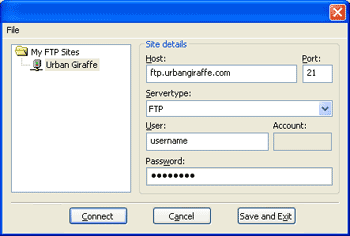
After a few moments (if the address, username, and password are correct) you will be connected to your website and will see a directory listing.
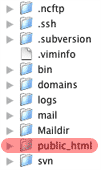
Navigate through this directory to where WordPress is installed. The exact location of this will change depending on your web host, but typically it will be inside a directory called public_html.
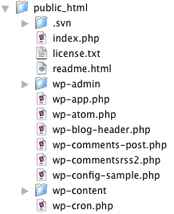
Now navigate through WordPress to where the plugins are located: wp-content/plugins/
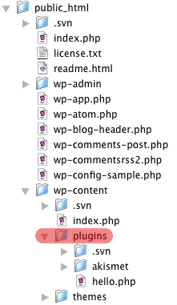
Now you can upload the plugin. Be aware that you need to upload the plugin directory as well as all files. Certain unzip applications will create a surrounding directory for you, which should not be uploaded. For example:
Correct (bold shows directory to be uploaded)
redirection/redirection.php
Incorrect
redirection/redirection/redirection.php
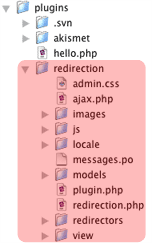
When uploaded you need to activate the plugin.
Activating & Deactivating Plugins
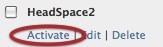
When a plugin is installed it can be activated and deactivated quickly from the Installed Plugins menu:
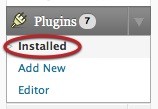
You will be presented with a list of plugins. Locate your plugin and press activate or deactive. Simple!
Upgrading a Plugin
When an update for a plugin is available you will see a red indicator in the plugins menu:
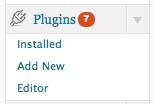
Clicking on this and then navigating to the Upgrade Available menu will display a list of plugins that can be updated. If this can be achieved automatically then selecting the upgrade automatically link will do this for you. If you want to manually update the plugin then you will need to follow the instructions above and re-upload the new version of the plugin. If you are using FTP then you are advised to delete the old plugin directory first – unless you have made modifications to the plugin files then all your settings and data will be retained.
[…] You can find full details of installing a plugin on the plugin installation page. […]
[…] You can find full details of installing a plugin on the plugin installation page. […]
[…] You can find full details of installing a plugin on the plugin installation page. […]
[…] You can find full details of installing a plugin on the plugin installation page. […]
[…] You can find full details of installing a plugin on the plugin installation page. […]
[…] You can find full details of installing a plugin on the plugin installation page. […]
[…] You can find full details of installing a plugin on the plugin installation page. […]
[…] You can find full details of installing a plugin on the plugin installation page. […]
[…] You can find full details of installing a plugin on the plugin installation page. […]
[…] You can find full details of installing a plugin on the plugin installation page. […]
[…] You can find full details of installing a plugin on the plugin installation page. […]
You should add some info here about upgrading to a new version of a WordPress plugin.
Like do you first deactive the plugin and then delete the old folder with the old files before you install the new folder and files? Or do your just overwrite the files in the old folder with the new files (after you deactive the plugin).
By the way, what WordPress plugins are you using for email notices of ‘Subscribe to comments’ and ‘blog subscription’.
A good idea Joni, I’ll look into that soon. The subscribe to comments plugin is called ‘subscribe to comments’! It’s found at txfx.net. The blog subscription is of my own creation, and doesn’t exist outside some experimental code.
Yes … and what if you have WP 2.5? Where do you activate the plug-in? Thx!
[…] title […]
I follow all of the steps listed above, but when I go to the list of plugins, it’s not there. What am I doing wrong? I can’t find anyone to help me.
Thank you.
It’s hard to tell what you are doing wrong without seeing the process. if you followed all of the above steps and uploaded an unzipped plugin into your plugins directory then it will appear in the list.
In some few cases when installing plugins it is necessary to install only the files within the downloaded folder to your plugins dir rather than the entire folder. This is pretty uncommon now though. The only example of such a plugin that comes to mind is the ‘home-page-link.php’ addon. I would read the readme.txt file that usually comes with the plugin and also make sure to refresh your plugins page after the install. You may also in some case, make sure that when you are uploading the files that they are uploaded in Binary format.
hi i newbie in wordpress. my prolem is haw do i install plugin in normal wordpress acct. i didnt see any plugin in my acct.
please help me
hmmm. I’ve activated the plugin, but do not see a place to manage it. I have many plugins, but don’t see it under settings, along with the others.
help?
thanks.
found it under manage. plz disregard. thank you.
Kathi,
I had a similar problem with another plugin. You can try to upload the folder within the main folder of the plugin, which appears in your root directory. That worked for me with another plugin. It may work for this one too.
Cool Tutorial. Is like if you want to explain someone how to take a shower. Extremly for Dummies ;-). Anyway! how much time did you spent for that post
Hi Nice to have plugin here. I have configured the plugin with the procedure you explained but it did not show any result. Can you please tell me what else should i need to check for making this work in my site????
Without knowing more about the plugin there is nothing else I can say. Remember that general wordpress support questions should be directed to the wordpress support forum.
Hi there – thanks for the tutorial. I get how to do everything you explain, and have installed and activated 3 plugins. The problem is…now what? Like – how does one see these plugins in order to use them in one’s website? So looking at my website, I have the Calendar plugin. But where is it? How do I get to that page? There’s no link, no module…nothing. Same with a form plugin I activated. It’s installed. It’s activated — but it doesn’t show up on the website. So it appears there’s one step missing — the finally step — in the directions for noobies like me…HELP! Thanks!
Katrina, use of the plugins will depend entirely on the plugins themselves and you should consult the author’s website for further details. Typically additional menu options are added into the WordPress administration pages.
[…] are 16 comments and 20 pings. You can keep track of all comments with the RSS feed. Next » How to install a WordPress theme « Previous Inside WordPress: A series of WordPress […]
Good tutorial..if anyone ever needs to know how to upload in binary format using Filezilla, I wrote instructions and posted them to CakeBlast.
..partially in response to what Compusure said.
Hi, Believe it or not there was a problem installing Drain Hole … th following message appeared as anauthoritative looking comment as part of “Manage – Drain Hole” >>>>> Rendering of admin template /hermes/bosweb/web114/b1141/sl.clamclay/public_html/CC/wp-content/plugins/drain-hole/view/admin/holes.php failed
How can I get it working?
Make sure you have uploaded the plugin correctly – you should have a drain-hole directory with files and sub-directories.
Excuse me so much but I seguoto the procedure only when certain that on google for example one of my old post he gives me a blank page and not redirect me to the new url.
What’s wrong?
Thank you very much
I don’t know what you are referring to, Stefano
As an Italian I reckon Stefano just used Bablefish or Google tanslate.. I think he was trying to say:
“I followed your procedure but when I click on a SERP result for one of my old posts I get a blank page (404?) and does not redirect to the new page. ”
Hope I got it right and you can help him…
…and by the way…It works like a lucky charm… I spent all day on this and this is SWEEEEEEEEETTTT!!!! I’ll donate.
Hello!
I’m new to all of this. Everytime I try to install a plugin to my wordpress I get headaches and I give up.
I have a question.
what’s the username and password? it is my wordpress username? I have no clue. I have problems contecting the sever.
I’ll be greatful if someone helps.
I just installed this plugin and I am following a tutorial where it instructs me to go to Manage -> Redirection -> Options
I cant seem to find manage…. I have looked everywhere.
Here is a snippet of the directions I am trying to follow
Once you’ve done that, you’ll want to install the Redirection plugin, and make sure that under Manage -> Redirection -> Options, making sure both URL Monitoring select boxes are set to “Modified posts”. Now you can change those permalinks to perfectly SEO’d permalinks without having to do anything else, or worry about the search engine consequences.
Any suggestions?
Later versions of WordPress changed the menu name to Tools.
Thn’ks for your help, your post make me easy to install headspace plugin.
once again thank you for your post. GBU
Thanks! That issue of the unzip creating an extra directory wrapped around the plugin was preventing this from working, and the (lack of) error messages wasn’t giving me anything to go on to figure out why! Just ended a couple hours of frustration. Thank you thank you thank you!
How do you get them to show up on the site, I already activated it i just can’t find a place to add it to the site itself?
Hello John,
I have installed and activated the plugin but it is “not” showing up on the page. What am I doing wrong? Do I have to edit the page and enter some code so the plug in is displayed on the page?
John,
Is there a way to make the iframe taller than it is? On my webpage it is only about 2 to 3 inches. I would like to see it about 6″.
Gary
I have a dumb question, I am new to word press, i have got most of it working great but for some reason I have no idea how to access the gallery addon I have installed. It talks about shortcodes and gives me a list but i have no idea how to actually use them. I have googled how to use it and the only information that comes up is how to install( and that is the easy part) anyone have any ideas
Hi. Do some WordPress themes just not allow you to add a plugin or can you only add a plugin on a paid version of
Wordpress? Honestly, I cannot find out how to upload a plugin anywhere in my administration menus. It’s just not there.
Any help would be greatly appreciated 🙂
Thank you for your help!
Nicolette
Hello! I just upgraded to WordPress and was wondering how to install some plug ins I had saved in my favs for a while. Thanks! Your directions worked perfectly. Although I feel a bit silly after seeing how easy it is. I guess if you just don’t know it seems hard. Thanks again!!
When updateing a plugin, do you first deactivate the plugin and then delete the old folder with the old files before you install the new folder and files? Or do your just overwrite the files in the old folder with the new files (after you deactive the plugin)?
Just overwrite the files – there’s no need to deactivate anything. Even better, let WordPress upgrade it for you from the plugins page.
I can not find the “Plug ins” tab on my admin panel. Help!
You are using WordPress.com – http://en.support.wordpress.com/com-vs-org/
To those folks who can’t see their plugin even though the permissions look right etc: If you are running SeLinux security it
is also necessary to ensure that the context for the plugin’s files are such that the webserver can see them. Try
restorecon -Rand see if that makes it appear. It did for me!newPluginDirectory
Thank you very much- I could not find a “how-to” anywhere and your instructions where way more clearer than the plugin installation guide!
Thank you so much for the unzipping hint! You saved me hours 🙂
Really simple question.. i am completely new to plugins and managed to install the events calendar and subscription on my site…..How do you do the same with forums? I can install and activate them but how do you put them into say the forum plugin to the forum page. Every info I have read just says ‘install and sit back’ your plugin is activated. But it does not show anywhere…do I need to copy some coding into the ‘forums’ page for it to appear lik i did with the directroy plugin
You’ll need to ask that question in the appropriate place for the plugin.
I tried installing a plugin (WP ROBOT), but when I went to activate it, this is the message I got at the top of the page:
Plugin could not be activated because it triggered a fatal error.
Fatal error: Call to a member function query() on a non-object in /home/readblog/public_html/computer/wp-content/plugins/WP ROBOT/mainstall.php on line 160
Is there something I need to do or I can do to make activate properly?
Thanks.
>M<
Possibly, but that’s a question that the author of the plugin will be best placed to answer.
which is where? everything says ‘activate plugin’ which I did but how do I put the thing into a page…I understand the shortcode but not every plugin has a shortcode….
I don’t know the plugin but it should have an author URL somewhere. Failing that you can ask on the WordPress.org forums
I have the same question that has been asked above several times. I’ve also looked elswhere, and I find this question being asked a lot. Yet, no one has been able to answer this question. I’m sure it will help a lot of people if someone is able to provide assistance with this:
I have installed some plugins to create admin pages such as a contact us page/about page/terms of use page, etc. The plugins are installed correctly. I see them on my host server. They have been activated. Yet when I go to “pages”, I do not see a contact us page, or an about page, or a terms of use page.
Does anyone know how I can get these pages to appear?
Thank you !!
You probably have to create them yourself. Look at the instructions for the plugins you have installed.
Thanks for the installation instructions . . . and for keeping them simple.
Thank you very much for this useful post and videos. The plugin is working very well!
Hello!!
I have same problem..
I’ve created blog in wordpress.com but there is no plugin menu/option..
Please, reply..
I want to install plugin..
There are no plugins on WordPress.com
This is a very useful site; I learned today that uploading of wordpress plugins can be done without using FTP. Till now I always applied my FileZilla Client to upload my plugins. It is not fast, but it works perfect. However today I was viewing a video in which someone was uploading a plugin as a Zipped File. Just a joke, how could that be? After Googling to find the truth I found your site and the answer to my question. Thanks a lot.
Gabriel
I am geting this error message while uploading a plugin to my wordpress site. Can u help me out
Status: Resolving address of http://ftp.ecofriendlyfriends.wordpress.com
Status: Connecting to 74.200.243.251:21…
Status: Connection attempt failed with “ECONNREFUSED – Connection refused by server”, trying next address.
Error: Could not connect to server
Yes, you are on WordPress.com. You don’t have plugins and you don’t have an FTP site.
thanks alot bud. I was having trouble with being locked out of doing the automatic installs and thought it was going to be a major problem. But all I needed was to change the file permissions on the plugins folder via my FTP. Lifesaver!