
| Download: | Drain Hole |
|---|---|
| Version: | 2.2.8 |
| Supports: | WordPress 2.5-2.9 |
| Other: | This plugin is no longer actively maintained |
Drain Hole is a centralized download manager, with full monitoring and statistics, versioning, SVN support, and SEO download URLs (no more nasty query strings!).
In addition to it’s monitoring abilities, Drain Hole has a run-time tag replacement feature that lets you embed special tags in your post which are replaced with information from Drain Hole. For example, you can embed download URLs, version information, last update times, and so on. Whenever you change a downloadable file it is automatically updated throughout your blog, without you needing to change anything else.
Features include:
- SEO download URLs – a unique feature that allows files to look like real links
- Local or remote file storage – keep your files on your own server or have them stored somewhere else such as Amazon S3 or wordpress.org
- SVN support – attach a file directly to an SVN repository and have the contents automatically updated
- Versioning – maintain multiple versions of a file, allowing users to download older files
- Full download statistics, including number of downloads, access times, referrer, and download speed, available as CSV and Flash-based graphs
- Download security – permissions can be assigned to downloads (including Flash files), restricting them to WordPress roles
- Template tags – insert dynamic download data into posts, and into the sidebar as a Widget
- Hot-link protection
- Fully localized
Installation
Installation is like any WordPress plugin:
- Download Drain Hole
- Unzip
- Upload drain-hole directory to
/wp-content/pluginson your server - Activate the plugin
- Use Drain Hole from the Manage/Drain Hole menu
You can find full details of installing a plugin on the plugin installation page. SVN access to the plugin is provided at the SVN repository.
General Concepts
The Drain Hole plugin makes use of two fundamental concepts:
- Drain hole – a base URL and associated directory where files are stored and downloaded from
- Files – a file belongs to a particular Drain hole
It is important to understand the mapping between a Drain Hole’s URL and its associated directory. To do this you need to know two pieces of information:
- Where files are to be downloaded from (i.e.
http://urbangiraffe.com/download/) - Where files are to be stored (i.e
/users/john/download/)
This is a mapping from URL to directory:
http://urbangiraffe.com/download/ => /users/john/download/
All files inside the directory will be available at the Drain Hole URL. For example:
/users/john/download/myplugin.zip => http://urbangiraffe.com/download/myplugin.zip
It is preferable that your directory is not in a public location (i.e. in public_html) as Drain Hole may not then be able to function. Your URL must be part of your WordPress installation, but you should not create a directory for it.
Creating a Drain Hole
New Drain Holes require the following information:
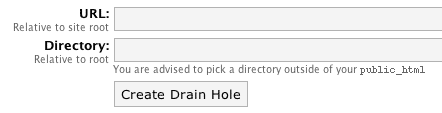
The URL is the URL on your website at which to make the files available. The directory is the real directory in which the files exist. These two values do not have to match up and the files do not (and ideally should not) be publicly available.
Once a Drain Hole has been created you can then edit it from the list of Drain Holes:

Editing a Drain Hole will allow you to set additional options:
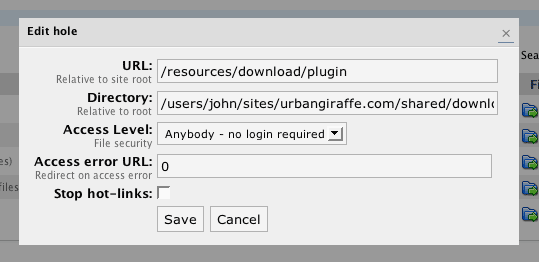
The Access Level is the minimum user level required to download files from the hole. This allows you to restrict download access to certain types of user. If a user does not meet the required access level then they will be returned a 404 error page or will be redirected to the configured URL.
The Stop Hot-links option allows you to stop external users from downloading files in the hole. This protection is achieved by analyzing the referring page for a given download – if the referrer is not from your site then the user is sent a 404 error page or redirect to the error URL.
Files
A Drain Hole can contain any number of files and sub-directories.
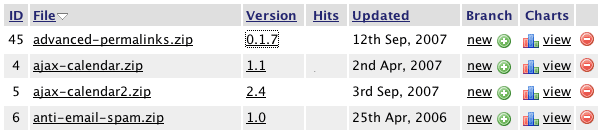
As with the rest of the plugin, columns are sortable, and data can be searched.
Each file allows you to:
- Edit the file configuration
- Manage version history (by clicking on the version number)
- View download statistics (by clicking on the number of hits or the charts link)
- Create a new version or update from SVN (by clicking on the branch link)
When editing a file you will be shown additional configuration details:
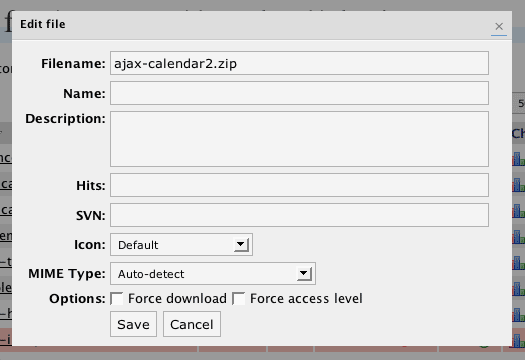
The filename is the actual name of the file and this may differ from the name, which is what will be shown in a download link. If no name is given then the filename will be used. As an extra function, you can insert $version$ into the name and it will be replaced with the file’s current version.
The description is a free-form field allowing you to enter further details about the download. This can be shown when the file is displayed.
The SVN field allows you to enter an SVN repository. See the SVN section later.
When displaying a file to download, an icon can be shown. You can change which icon is shown when editing a file.
The MIME type allows you to specify a custom MIME type for the file. This may be useful if you want a file to open inside the browser. If set to ‘automatic’ then Drain Hole will try and decide what the file is.
Forcing a download allows you to override default browser behaviour and force the file to always be downloaded. This is useful if you have a file that a browser usually tries to open (for example, a PDF), but you want it to always be downloaded.
Forcing the access level is an advanced option that is useful if you are trying to restrict files that are used inside Flash. For example, you may have a video tutorial that you want to restrict to registered users only. The flash video player requires your video file to be available, but may not provide any restriction options. Storing the video inside Drain Hole and then forcing the access level will ensure that only allowed users can access the file, even inside Flash.
Adding new files
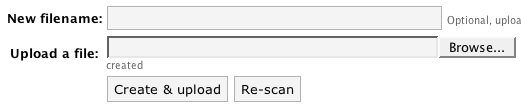
New files can be added by any of these methods:
- Uploading a file directly into the Drain Hole directory and ‘rescanning’
- Uploading a file through the browser
- Creating an empty file which can be uploaded later, or which requires an SVN repository
Versions
Drain Hole allows you to retain old versions of files, either for archiving purposes or for user downloads. To modify a file’s version you need to create a new branch:
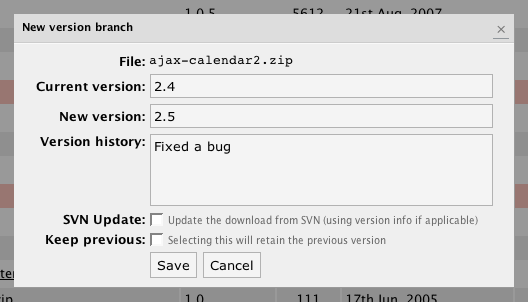
You can enter details about the reason for the new version, and this will be presented to the end user. To retain an old version you must check ‘retain old version’. This old version can be downloaded as follows:
http://urbangiraffe.com/download/myplugin.zip?version=1.2
SVN
Drain Hole provides simple SVN functionality that allows you to associate a file with an SVN repository. A file that uses SVN can then be ‘refreshed’ directly from the SVN repository, rather than requiring you to manually update the file.
SVN functionality requires that you have SVN installed on your host. You must configure the Drain Hole options and provide the full path to the svn executable. If you are in doubt you should consult your host for details.
When an SVN-based file is refreshed, Drain Hole will use SVN to retrieve the latest copy of the files. If a repository contains multiple files they will be automatically zipped.
As additional functionality, Drain Hole will detect if the SVN repository is for a WordPress plugin, and will automatically set the version according to the version information inside the plugin.
Note that no direct capabilities are provided for username and passwords. However, you can pass a username and password to SVN by including it on the SVN field:
http://svn.mysite.com/plugin/trunk/ --username=john --password=thing
Download As – Remote File Storage
With version 2.2, Drain Hole now allows you to keep your files stored on a remote server. For example, you may want to have the files stored on Amazon’s S3. To achieve this you can enter the full URL of the remote file in the ‘download as’ field on a file.
Note that entering a filename in the ‘download as’ will allow you to have the file download with a name different to the original. Additionally, if you enter $version$ in this filename then Drain Hole will automatically replace it with the file’s current version. This will be useful if you want one download URL that when clicked will download a versioned file.
Download Tags
The following tags can be inserted inside posts and pages to embed Drain Hole information. This information is generated dynamically, and will change whenever the underlying information changes:
[drain hole ID hits]– Displays the total number of hits from the specified hole ID[drain hole ID show]– Show a list of all files in the specified hole (change display code by copyingview/drain-hole/show_hole.phpfrom the Drain Hole plugin directory to the same directory path in your theme’s directory and editing the file)[drain file ID show template]– Displays the download template for the specified file ID. ‘template‘ is optional and can be ignored (the default template will be used)[drain file ID version]– Displays the version of the specified file[drain file ID versions limit]– Displays the specified number of versions from the file’s history[drain file ID hits]– Displays the total downloads for the specified file[drain file ID url name]– Displays a URL allowing the specified file to be downloaded. ‘name‘ is optional and is the text that will appear inside the download link (if not specified then the filename is used)[drain file ID updated]– Displays the update time of the specified file[drain file ID size]– Displays the size of the specified file[drain file ID icon]– Displays the download icon for the specified file[drain file ID href]– Displays the URL of the file
Where ID refers to the ID of the file or hole, as shown in the Drain Hole administration pages.
Download Templates & File Icons
A download template is a section of HTML code that is used to display all the information for a file download. For example, on this page in the top right corner is the download for Drain Hole itself. The icon and file information are all part of a download template that is re-used on each of the other plugin pages available from this site.
A download template is a file that is stored in your theme directory and contains standard HTML as well as special Drain Hole template tags:
$icon$$url$$version$$updated$$size$$href$
These template tags function similar to the post & page tags, but do not require an ID to be specified.
A default template is provided with Drain Hole. Custom templates are PHP files that are stored in view/drain-hole, inside your theme directory. For example, if you are using the default WordPress theme then:
/wp-content/themes/default/view/drain-hole/mytemplate.php
To use this template in a post you would insert the tag:
[drain file 5 show mytemplate]
This tells Drain Hole to use ‘mytemplate.php‘ to display file 5.
Custom icons can be stored inside your theme:
/wp-content/themes/default/view/drain-hole/icons/
Statistics
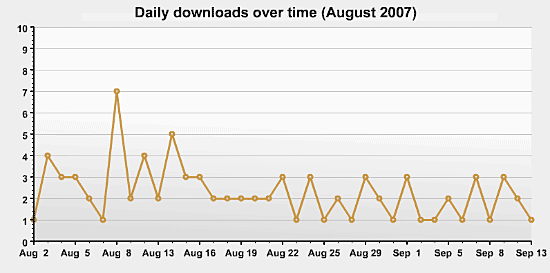
Drain Hole provides full download statistics:
Support & Bugs
This plugin is no longer actively maintained.