This guide is another in the Inside WordPress series and will show you how to install a WordPress theme. While this is a relatively simple task it is one of fundamental importance to WordPress and is often overlooked. As such it is a potential cause of problems to beginners, and not being able to successfully install themes will prevent you from customising your weblog and taking it beyond the default style.

The installation process can be broken down into
- Download & unzip the theme file
- Upload the theme to your website
- Activate the theme
We’ll look at each step in turn.
Download & Unzip the theme file
WordPress themes are usually distributed as zip files. A zip file is a special file that allows you to store and compress many files together, resulting in a single file that is small and fast to download. Downloading a theme consists of clicking the download link from the appropriate website and allowing the browser to store the file somewhere on your computer:
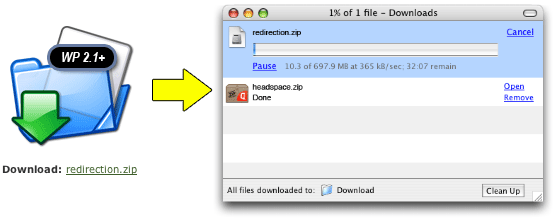
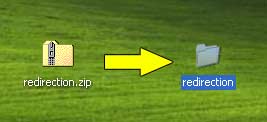
Once downloaded the file needs to be unzipped, a term that refers to the de-compressing and restoring to normal of a zip file. Depending what kind of computer you are using this is either a very simple stage, or one that requires additional software. Recent versions of Windows will already understand zip files, as will OS X. If they don’t then you will need to download and install something like 7-Zip, Winzip, or StuffIt.
When ready, unzip the theme:
Upload the theme to your website
Currently you have the theme on your computer, but you’ll need to move it to your website before it can be activated. There are a variety of ways of doing this, and here we will use FTP. Before
you continue you should have access to your FTP username and password. These are the same details provided to you by your web host, and the ones which give you access to your site directory.
Before you begin you will need an FTP client. For Windows you can use FileZilla, for Mac OS X you can use Cyberduck. Once you have the FTP software installed you should start it and open a new connection. Enter your FTP address, followed by your username and password:
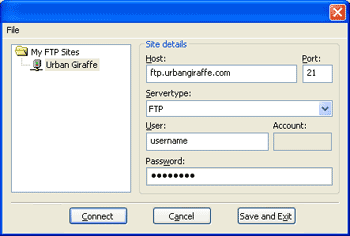
After a few moments (if the address, username, and password are correct) you will be connected to your website and will see a directory listing.
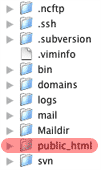
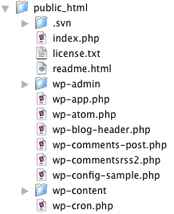
Navigate through this directory to where WordPress is installed. The exact location of this will change depending on your web host, but typically it will be inside a directory called public_html.
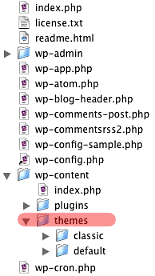
Navigate through WordPress to where the plugins are located: wp-content/themes/
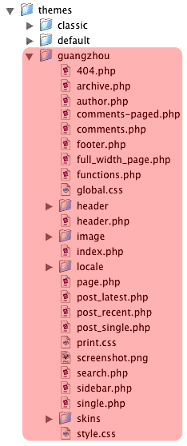
Now you can upload the theme. Be aware that you need to upload the theme directory as well as all files. Certain unzip applications will create a surrounding directory for you, which should not be uploaded. For example:
Correct (bold shows directory to be uploaded)
guangzhou/style.css
Incorrect
guangzhou/guangzhou/style.css
Activate the theme
This is the simplest stage. First you’ll need to login to your WordPress administration panel:

From your dashboard go to the themes section:

You will be presented with a list of theme. Locate the theme you uploaded in the list of available themes and click on it. Simple!
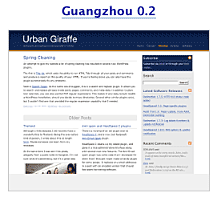
i like your Theme, where can i download it? i found nothing on http://bestofguangzhou.com
Beautiful theme!
Where we can find the Guangzhou theme?
Thanks!
I still haven’t finished it properly so the Guangzhou theme isn’t available yet. Someday it will be!
Why don’t you just release the beta version then? 😉
Yes, super nice WP Theme. Good job! What plugin are you using to add the tag cloud on the right hand side of the page? Also what plugin are you using for the "Subscribe To Comments" below. Thanks!
Oops, also wanted to ask what plugin are you using for adding the tiny Gravatars images in the comments?
The gravatars are part of the theme and can be added to any theme using one of these. The subscribe to comments is provided by the Subscribe to comments plugin, and the tag cloud is just part of the standard WordPress widgets
+1.
Your theme looks incredibly polished and we would love to learn from it.
I felt in love with this theme. Can I download it anywhere?
Someday maybe, but not yet!
I was searching for a topic on how to install a WordPress inside an existing WordPress.. until I stumbled upon your site. Great tips! and nice theme also.
JHAY
Thanks for the post but do I need to have a pay version of wordpress to do this changing of themes?
There is no pay version of WordPress – it’s free and you can change themes whenever you want
Ohhh… ok….
But I saw that I need to pay an extra per month if I wish to use CSS so I thought some services can be used only if payed! 😀
So can I access the ftp of wordpress even if I don’t have my website? I mean I only have wordpress on, which is thecitygarden.wordpress.com
Thanks a lot!!!
Sorry Antonino, but I don’t know what you are referring to.
What he means is he has this as his wordpress site: thecitygarden.wordpress.com
What does he enter for the FTP host? I’m having the same problem because there’s a Christmas theme I’d like to use from WordPress extended. If you don’t have your own domain name, will this still work?
That is a WordPress.com site. You cannot use FTP on WordPress.COM as it is hosted.
!Your theme is great!
?Where can I have it?
(It looks like it’s perfect finish ;))
This was a great tutorial, thanks from a WordPress.org newbie (and non-tekkie). I wish the Guangzhou guide kept going.
how can i install a theme to my wordpress account? what is the host? is it http://ftp.wordpress.com?
I just downloaded a theme to my server wp-content/themes then I logged into wordpress but in the presentation panel the theme I downloaded is not there.
Any ideas as of why? did I do something wrong?
thanks
Hi great job for with the detailed information, I want to mention the one click installation,- unfortunately these days there are still some web hosts that do not have the one click installation of WordPress, it’s a shame because it is so simple to install wordpress with either one click or CPanel ( fantasticoDeluxe ) , it takes just a few seconds and you are done, I have many Blogs all have the one click installation except one and with that one I always have problems, so the point of my rambling is if you do not yet have a web host then I recommend choosing one with the one click installation, you will not have any problems and its worth its weight in gold. if you would like some video tutorials for installation click on my name above. thanks Keith