This guide is another in the Inside WordPress series and will show you how to install a WordPress plugin. While this is a relatively simple task it is one of fundamental importance to WordPress and is often overlooked. As such it is a potential cause of problems to beginners, and not being able to successfully install plugins will prevent you from accessing the very large world of WordPress plugins.

There are three ways of installing a WordPress plugin:
- Automatically through WordPress – easiest, some server setup
- Manually uploading a plugin through WordPress – medium, some server setup
- Manually uploading a plugin via FTP – more complicated, no server setup
Automatically Installing a Plugin
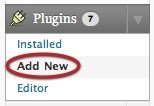
This is by far the easiest method but it does require that your server is setup in such a way as to allow modifications to the plugin directory. This is beyond the scope of this guide, but it involves giving group/other write permissions to the wp-content/plugins directory. Once setup you will be able to press on the Add New plugin menu option:
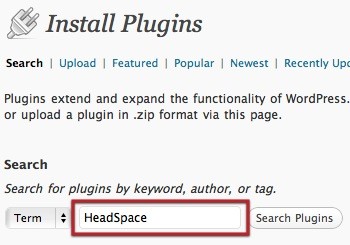
On the Install Plugin screen you can then simply enter the name of the plugin into the search field and perform the search:
The search results should then show the plugin. Clicking on install will automatically download and install the plugin onto your blog.

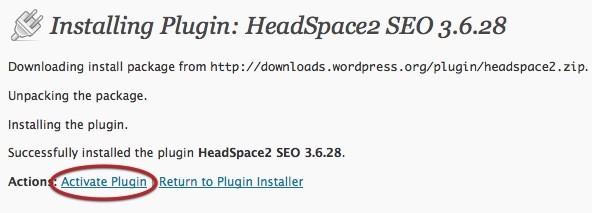
When finished you can then activate the plugin – everything is done and dusted!
Manually Installing a Plugin
Downloading a Plugin
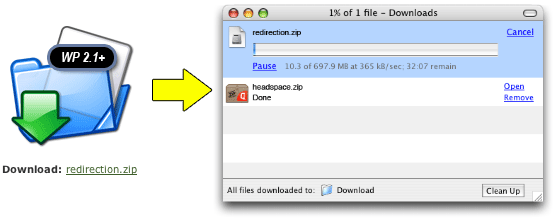
WordPress plugins are usually distributed as zip files. A zip file is a special file that allows you to store and compress many files together, resulting in a single file that is small and fast to download. Downloading a plugin consists of clicking the download link from the appropriate website and allowing the browser to store the file somewhere on your computer:
Installing a downloaded plugin via WordPress
From the WordPress plugin menu click on Add New:
Instead of searching for a plugin you can directly upload your plugin zip file by clicking on Upload:
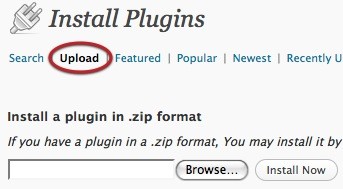
Use the browse button to select the plugin zip file that was downloaded, then click on Install Now. The plugin will be uploaded to your blog and installed. It can then be activated (see Automatically Installing a Plugin).
Installing a downloaded plugin via FTP
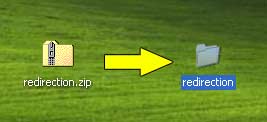
Once downloaded the file needs to be unzipped, a term that refers to the de-compressing and restoring to normal of a zip file. Depending what kind of computer you are using this is either a very simple stage, or one that requires additional software. Recent versions of Windows already understand zip files, as will OS X. If they don’t then you will need to download and install something like 7-Zip, Winzip, or StuffIt.
When ready, unzip the plugin:
Now you will need to upload the plugin to your site using FTP. Before you continue you should have your FTP username and password available (these are the same details provided to you by your web host) and have installed an FTP client. For Windows you can use FileZilla, for Mac OS X you can use Cyberduck. Once you have the FTP software installed you should start it and open a new connection. Enter your FTP address, followed by your username and password:
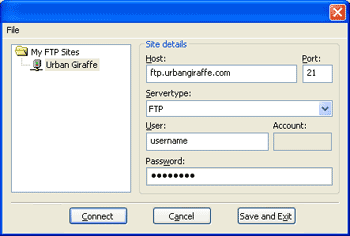
After a few moments (if the address, username, and password are correct) you will be connected to your website and will see a directory listing.
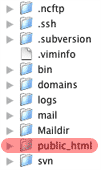
Navigate through this directory to where WordPress is installed. The exact location of this will change depending on your web host, but typically it will be inside a directory called public_html.
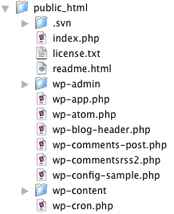
Now navigate through WordPress to where the plugins are located: wp-content/plugins/
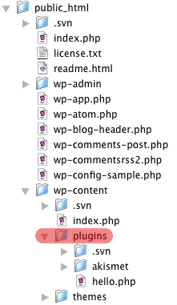
Now you can upload the plugin. Be aware that you need to upload the plugin directory as well as all files. Certain unzip applications will create a surrounding directory for you, which should not be uploaded. For example:
Correct (bold shows directory to be uploaded)
redirection/redirection.php
Incorrect
redirection/redirection/redirection.php
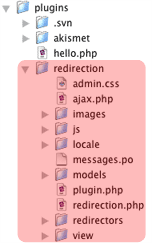
When uploaded you need to activate the plugin.
Activating & Deactivating Plugins
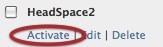
When a plugin is installed it can be activated and deactivated quickly from the Installed Plugins menu:
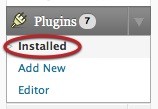
You will be presented with a list of plugins. Locate your plugin and press activate or deactive. Simple!
Upgrading a Plugin
When an update for a plugin is available you will see a red indicator in the plugins menu:
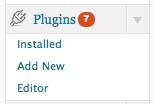
Clicking on this and then navigating to the Upgrade Available menu will display a list of plugins that can be updated. If this can be achieved automatically then selecting the upgrade automatically link will do this for you. If you want to manually update the plugin then you will need to follow the instructions above and re-upload the new version of the plugin. If you are using FTP then you are advised to delete the old plugin directory first – unless you have made modifications to the plugin files then all your settings and data will be retained.